
How to compress images to 20 KB, 50 KB or 100 KB
Meet an online form’s file-size rules without confusing kilobytes with pixels. Choose a target, inspect the result and keep a usable copy.
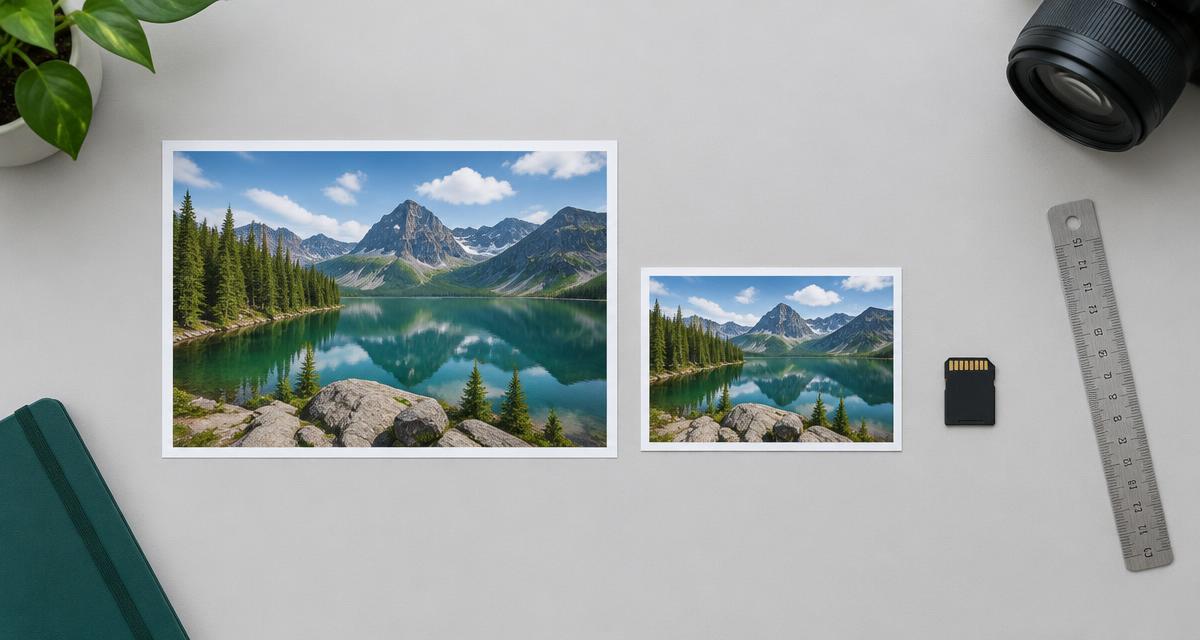
A photo can look small on screen and still exceed an upload limit. File size in KB measures the saved file; width and height in pixels describe its dimensions. Check both before changing your image. Start with the free Image Compressor, which processes images on your device without an account.
Check the form’s requirements first
Write down the maximum file size, accepted format and required pixel dimensions. A form asking for a 100 KB JPG is not asking for a 100-pixel image. Also check any rules about the subject, background or crop. A small enough file is not a guarantee of acceptance.
Keep the original. Work on a copy so you can retry without repeatedly compressing an already degraded image. If exact dimensions are required, use the Image Resizer first, then compress that result.
Compress to a target and inspect the result
- Open the Image Compressor and choose your image.
- Select the 20 KB, 50 KB or 100 KB target that matches the form.
- Check the actual final file size and the target-reached status, rather than assuming the button guarantees a result.
- Inspect small text, facial detail and edges in the preview before downloading.
- Download the result and check the receiving form’s size, format and dimension rules again.
The tool tries several quality levels locally. A detailed photo may not fit a very small target at its original dimensions. If the target is missed, you can allow resizing and try again, but check that the smaller dimensions still meet the form’s rules.
Choose quality and format deliberately
JPG and WebP usually compress photographs more effectively than PNG. PNG can be appropriate for graphics and transparent images, but quality changes may not reduce it as much. Do not switch a transparent graphic to JPG if you need to retain transparency. The form’s accepted formats take priority over the smallest possible result.
For another limit, such as 200 KB, use the quality slider and compare the actual result size with that limit. Lowering quality further is not always the best answer: a smaller pixel size can help when allowed, while a legible image is more useful than an unreadable file that happens to fit.
Troubleshoot a rejected upload
- If the file is too large, inspect the downloaded file rather than the original and try a lower quality or permitted resize.
- If the size fits but the upload fails, check the format and dimensions. Compression alone does not make an image square or change its subject.
- If detail becomes unreadable, return to the original and try a less aggressive setting. Do not claim compliance based only on a successful download.
Compression stays inside your browser; your selected image is not uploaded to Qevyro. Compress your image or set exact dimensions first.
Frequently asked questions
How do I compress an image to 20 KB, 50 KB or 100 KB?
Choose your image, then press Compress to 20 KB, 50 KB or 100 KB. Qevyro tries several quality levels on your device and shows the real final size, plus whether the target was reached.
What if my image can't get small enough?
Some large or detailed images can't reach a small target at their original dimensions. Qevyro shows the smallest result it found and tells you if the target was missed. You can allow resizing to try smaller pixel dimensions; the target still isn't guaranteed.
Will the website or form I'm applying to accept my compressed image?
Qevyro can't guarantee that. Every website, school, employer or government form sets its own rules for file size, format, pixel size and photo content. Check those rules and compare them with the size and format shown under your result.
Does compressing change the width and height of my image?
No, not by default. The pixel size stays the same unless you turn on resizing, and Qevyro tells you the new size when it changes.
How do I reduce an image's size in KB for a different limit, such as 200 KB?
The one-click targets are 20 KB, 50 KB and 100 KB. For another limit, use the quality slider and check the actual file size shown under the result, lowering quality until it fits. JPG and WebP usually get much smaller than PNG for photos.
Is my image uploaded anywhere?
No. Compression happens inside your browser. The image is never sent to Qevyro or anyone else.
Should I compress or resize my image?
Compress when a form limits the file size in KB. Resize when it asks for exact pixel dimensions, such as 600 × 600. If both apply, resize first with the Image Resizer, then compress the result here and check the final size.
Put this guide to work
Free, no account needed. Your inputs stay in your browser.
Related Qevyro tools
Related articles
Reading-time estimates: what your word count really tells you
Understand the 200-words-per-minute estimate, rounded minute totals and why a speech needs a different timing check.
QR code best practices for Wi-Fi, links and print
Create a static code, protect guest Wi-Fi details and test the downloaded PNG at its real display or print size.